
Table of Contents
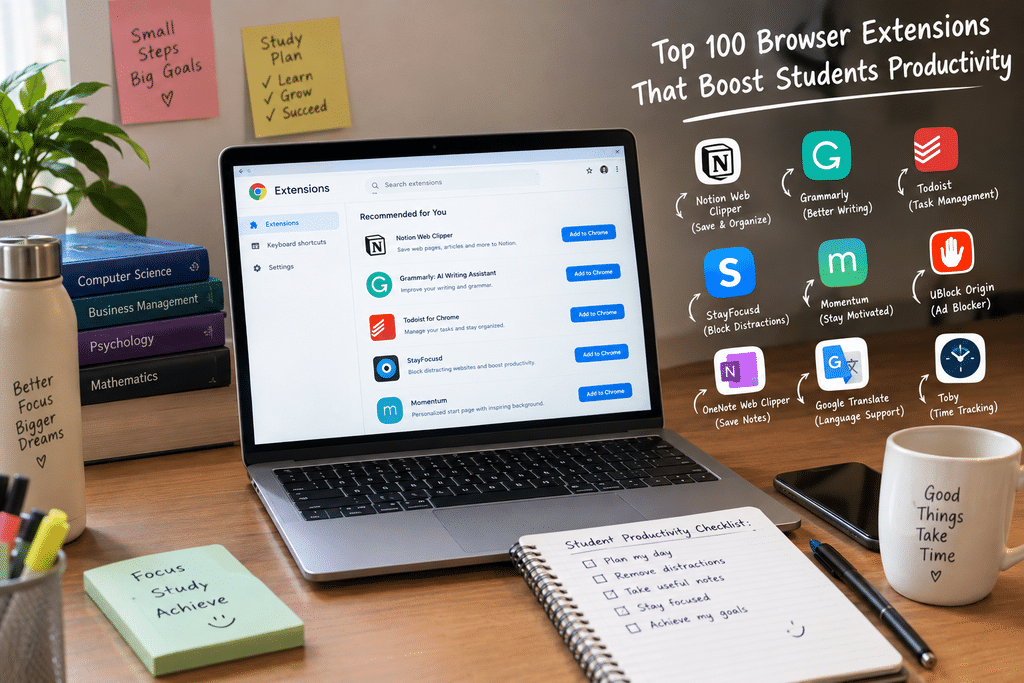
Browser extensions for students can make everyday academic tasks easier, from organising research and checking grammar to managing deadlines and blocking distracting websites. A typical study session may involve lecture notes, research papers, group documents, online classes, and several deadlines. Without a good system, switching between tabs and applications can waste valuable time.
Browser extensions add useful features directly to the browser. They can help students save articles, manage passwords, improve writing, track time, organise tabs, and create a more focused study environment.
However, installing every available extension is not necessary. The following list groups 100 tools into eight categories so students can choose the ones that solve their actual problems.
Top 100 Browser Extensions for Students by Category
1. Focus and Time Management (12)
These extensions help students reduce distractions, organise study sessions, and understand how they spend their time.
- StayFocusd: Limits the amount of time spent on distracting websites.
- Forest: Encourages focused sessions through a virtual tree-growing experience.
- BlockSite: Blocks selected websites and helps users manage online distractions.
- LeechBlock NG: Allows users to set rules and schedules for blocking websites.
- Freedom: Blocks distracting websites and applications across supported devices.
- Cold Turkey Blocker: Helps users restrict access to distracting websites during scheduled focus sessions.
- News Feed Eradicator: Removes distracting social-media news feeds on supported websites.
- Momentum: Replaces the new-tab page with a personalised dashboard, goals, and reminders.
- Clockify: Tracks time spent on assignments, study sessions, and projects.
- Toggl Track: Helps users record time spent on different tasks and activities.
- RescueTime: Analyses digital activity and provides insights into time usage.
- Marinara: Pomodoro Assistant: Provides Pomodoro-style timers for structured study and break sessions.
2. Writing and Language (16)
Writing tools can help students improve grammar, spelling, readability, and communication. They are useful for preparing assignments, reports, emails, and academic documents.
- Grammarly: Checks grammar, spelling, punctuation, and writing clarity.
- LanguageTool: Identifies grammar and spelling mistakes in multiple supported languages.
- QuillBot: Offers paraphrasing, summarisation, and other writing-assistance features.
- ProWritingAid: Provides detailed writing feedback on grammar, style, and readability.
- Ginger: Offers grammar correction and writing assistance.
- Wordtune: Helps users rewrite sentences and explore alternative expressions.
- Paperpal: Provides academic writing assistance for researchers and students.
- Microsoft Editor: Offers spelling, grammar, and writing suggestions where supported.
- Text Blaze: Creates reusable text snippets and templates for frequently typed content.
- TextExpander: Helps users save and insert frequently used text snippets.
- Google Translate: Translates selected text and webpages into supported languages.
- DeepL: Provides translations and writing assistance for supported languages.
- Reverso: Offers translation and contextual language examples.
- Mate Translate: Provides translation features through supported browsers.
- Language Reactor: Supports language learning through subtitles and interactive tools on supported video platforms.
- Word Counter Plus: Counts words and characters in selected text.
3. Research and Citations (16)
Research extensions help students collect academic sources, save references, highlight useful information, and organise reading materials.
- Zotero Connector: Saves research sources and bibliographic information to a Zotero library.
- Mendeley Web Importer: Helps users collect research references and import papers into Mendeley.
- Google Scholar Button: Provides quick access to Google Scholar searches and publication information.
- Unpaywall: Helps users find legally available open-access versions of scholarly articles.
- Open Access Button: Was designed to help users locate open-access research. Check its current availability before recommending or installing it.
- Scholarcy: Helps summarise and extract key information from research papers.
- MyBib: Supports citation creation and bibliography management.
- Perplexity: Provides AI-assisted search and research through its browser offering.
- Wikiwand: Presents Wikipedia articles in an alternative reading interface.
- Hypothesis: Allows users to annotate and discuss webpages and documents.
- Diigo: Supports bookmarking, highlighting, and organising online research.
- Web Highlights: Helps users highlight, annotate, and save information from webpages and PDFs.
- Glasp: Provides social web highlighting and knowledge-sharing features.
- Readwise Highlighter: Helps users save and organise highlights from supported reading sources.
- Weava Highlighter: Supports highlighting and organising information from webpages and PDFs.
- Instapaper: Saves online articles for a cleaner reading experience later.
4. Notes, Clipping and Recording (12)
These extensions help students collect information, save important pages, record explanations, and organise material for revision.
- Notion Web Clipper: Saves webpages and online content to a Notion workspace.
- Evernote Web Clipper: Captures webpages, articles, and selected content for later reference.
- OneNote Web Clipper: Saves online information to Microsoft OneNote.
- Obsidian Web Clipper: Captures web content for use in an Obsidian knowledge base.
- Joplin Web Clipper: Saves webpages and notes to a Joplin notebook.
- Google Keep: Provides quick note and information-saving features through its browser integration.
- Raindrop.io: Organises bookmarks, articles, images, and other online resources.
- Save to Google Drive: Saves selected web content and files to Google Drive.
- Tactiq: Provides AI-assisted meeting transcription and summaries on supported meeting platforms.
- Otter.ai: Offers meeting transcription and note-taking features.
- Kami: Supports PDF annotation and document collaboration.
- Loom: Records and shares screen-and-camera video explanations.
5. Tabs and Planning (14)
Managing multiple assignments and browser tabs can become difficult during busy academic periods. These tools help students organise tasks, manage projects, and keep their workspaces organised.
- Todoist: Organises assignments, reminders, and personal task lists.
- TickTick: Combines task management, reminders, and planning features.
- Microsoft To Do: Helps users organise tasks, lists, and reminders.
- Any.do: Provides task lists, reminders, and planning features.
- Trello: Organises assignments and group projects using boards, lists, and cards.
- Asana: Helps teams coordinate projects, tasks, and deadlines.
- Workona: Organises browser tabs and workspaces around different projects.
- OneTab: Converts open tabs into a consolidated list to reduce tab clutter.
- Tab Manager Plus: Helps users view and manage multiple open tabs and windows.
- Session Buddy: Saves and restores browser sessions and tab collections.
- Toby: Organises browser tabs into collections and workspaces.
- Auto Tab Discard: Suspends inactive tabs to reduce browser resource usage.
- Dualless: Helps users arrange browser windows for side-by-side work.
- Checker Plus for Google Calendar: Provides quick access to Google Calendar events and notifications.
6. Visuals, Media and Capture (12)
Visual tools can help students create presentations, record demonstrations, capture information, and make learning materials more engaging.
- Screencastify: Records browser screens and creates instructional videos.
- Nimbus Screenshot: Captures screenshots and records screen content.
- Lightshot: Provides quick screenshot capture and annotation features.
- Awesome Screenshot: Supports screenshots, screen recording, and visual annotations.
- Full Page Screen Capture: Captures complete webpages as screenshots.
- Canva: Helps users create posters, presentations, graphics, and other visual content through its browser tools.
- Miro: Provides an online collaborative whiteboard for brainstorming and planning.
- Lucidchart: Helps users create diagrams, flowcharts, and visual explanations.
- Video Speed Controller: Allows users to adjust video playback speed on supported websites.
- Enhancer for YouTube: Offers additional controls and customisation for YouTube viewing.
- Read Aloud: Converts webpage text into spoken audio.
- Speechify: Provides text-to-speech features for supported webpages and documents.
7. Math, PDFs and Reading Comfort (8)
These tools support mathematical exploration, PDF handling, and a more comfortable reading experience.
- Wolfram Alpha: Provides computational answers and explanations for mathematical and scientific queries.
- Smallpdf: Offers PDF conversion, compression, and document-management tools.
- iLovePDF: Provides browser-based PDF editing, conversion, and compression features.
- Adobe Acrobat: Supports viewing, working with, and managing PDF documents.
- Print Friendly & PDF: Helps users create cleaner printable versions of webpages and save them as PDFs.
- Reader View: Removes unnecessary webpage elements to provide a simplified reading layout.
- Dark Reader: Applies dark themes to websites to make browsing more comfortable in low-light environments.
- Equatio: Supports the creation and input of mathematical expressions and equations.
8. Security, Privacy and Power Tools (10)
Students frequently use online accounts, learning platforms, email, and cloud storage. Security and privacy tools can help protect accounts and provide greater control over browsing.
- Bitwarden: Stores and manages passwords through an encrypted password-management service.
- 1Password: Helps users securely manage passwords and other sensitive information.
- Proton Pass: Provides password management and additional privacy-focused features.
- uBlock Origin: Blocks advertisements and unwanted content using filter lists. Browser support varies, particularly because of Chrome’s extension-platform changes.
- Privacy Badger: Helps block certain trackers that monitor browsing activity.
- Ghostery: Provides tracker blocking and privacy-related browsing controls.
- Vimium: Adds keyboard-based navigation and browsing shortcuts.
- Tampermonkey: Allows users to manage and run userscripts that modify webpage behaviour.
- Bardeen: Provides browser-based workflow automation and integrations.
- Calendly: Provides scheduling features and browser integration for managing meeting bookings.
Study Tools Worth Installing
A long list is useful for discovering options, but students usually need only a few tools to improve their everyday workflow. Here are some practical combinations.
To Reduce Distractions
StayFocusd can limit time spent on distracting websites. Forest offers a more visual approach to focus sessions, while Clockify helps students understand how much time they spend on assignments and other activities.
To Write More Clearly
Grammarly can help check grammar, punctuation, and clarity. LanguageTool is another option, particularly for multilingual writing. QuillBot can assist with rewriting, but students should follow their institution’s academic-integrity and AI-use policies and properly acknowledge source material.
To Read and Research More Efficiently
Zotero Connector helps collect research references, while Web Highlights and Glasp support highlighting and saving useful information. These tools can make it easier to return to important sources during revision and project work.
To Stay Organised
Todoist helps students record assignments and deadlines. Workona can organise browser workspaces, while Dualless can help arrange windows for reading and writing. Loom and Screencastify are useful for recording project demonstrations and explanations.
Quick Comparison: 12 Browser Extensions to Start With
| Extension | Category | Best for |
|---|---|---|
| StayFocusd | Focus | Blocking time-wasting websites |
| Forest | Focus | Focus sessions |
| Clockify | Time tracking | Monitoring study time |
| Grammarly | Writing | Essays and emails |
| LanguageTool | Writing | Multilingual proofreading |
| Zotero Connector | Research | Saving research references |
| Web Highlights | Research | Highlighting online material |
| Glasp | Research | Saving and organising ideas |
| Todoist | Planning | Assignment task lists |
| Workona | Organisation | Project-based browser workspaces |
| Dualless | Layout | Side-by-side studying |
| Bitwarden | Security | Password management |
How to Choose Browser Extensions Without Slowing Your Browser
Installing too many extensions can make browser management difficult and may affect performance. A better approach is to select tools based on specific needs.
Consider these points before installing an extension:
- Choose one tool per problem: Start with one focus blocker, one writing assistant, and one research or note-taking tool.
- Review permissions: Check whether an extension needs access to all websites or only selected pages.
- Check the developer: Prefer established publishers with transparent privacy policies and regular maintenance.
- Review browser compatibility: An extension may work differently across Chrome, Firefox, Edge, and Safari.
- Check pricing: Some extensions offer free versions but restrict important features to paid plans.
- Remove unused tools: Uninstall extensions that you no longer use or trust.
- Be careful with advanced tools: Extensions such as Tampermonkey can run scripts that modify webpages, so install scripts only from sources you trust.
Browser permissions matter. Depending on the permissions granted, extensions may be able to read or modify information on websites you visit. Students should be particularly careful when accessing college portals, email, online documents, and personal accounts.
A Starter Stack for Ten Minutes of Setup
Students who want a simple starting point can build a small collection:
- Focus: StayFocusd or Forest
- Writing: Grammarly or LanguageTool
- Research: Zotero Connector and Web Highlights
- Planning: Todoist
- Security: Bitwarden
Install only the tools that solve a real problem. Review your extensions every month and remove anything you have stopped using.
Final Thoughts
Browser extensions for students can make everyday academic work more organised and efficient. They can help manage distractions, improve writing, collect research, organise assignments, capture learning materials, and protect online accounts.
However, productivity does not depend on the number of extensions installed. Most students can begin with four or five carefully selected tools and add more only when a genuine need arises.
Choose extensions from trusted developers, check their permissions, and review them regularly. The best browser setup is not the one with the most features; it is the one that helps you study effectively without creating more distractions.
References
- Kripesh Adwani, “10 Must Have Chrome Extensions for Students (2026).” https://kripeshadwani.com/chrome-extensions-for-students/
- Supademo, “Top 14 Productivity Chrome Extensions for Teams and Students in 2026.” https://supademo.com/blog/productivity-chrome-extensions
- Amber, “The 12 Best Chrome Extensions for Students in 2026.” https://amberstudent.com/blog/post/the-best-chrome-extensions-for-students
- SendWin, “5 Chrome Extensions for Students in 2026.” https://blog.send.win/5-chrome-extensions-for-students-in-2026-best-chrome-extensions-for-students-in-2026/
- Zotero, “Zotero Connector Documentation.” https://www.zotero.org/support/connector
- Google Chrome Help, “Permissions Requested by Apps and Extensions.” https://support.google.com/chrome_webstore/answer/186213
- Google Chrome for Developers, “Protect User Privacy.” https://developer.chrome.com/docs/extensions/develop/security-privacy/user-privacy
- Raymond Hill, “About Google Chrome’s ‘This Extension May Soon No Longer Be Supported’.” https://github.com/gorhill/uBlock/wiki/About-Google-Chrome%27s-%22This-extension-may-soon-no-longer-be-supported%22